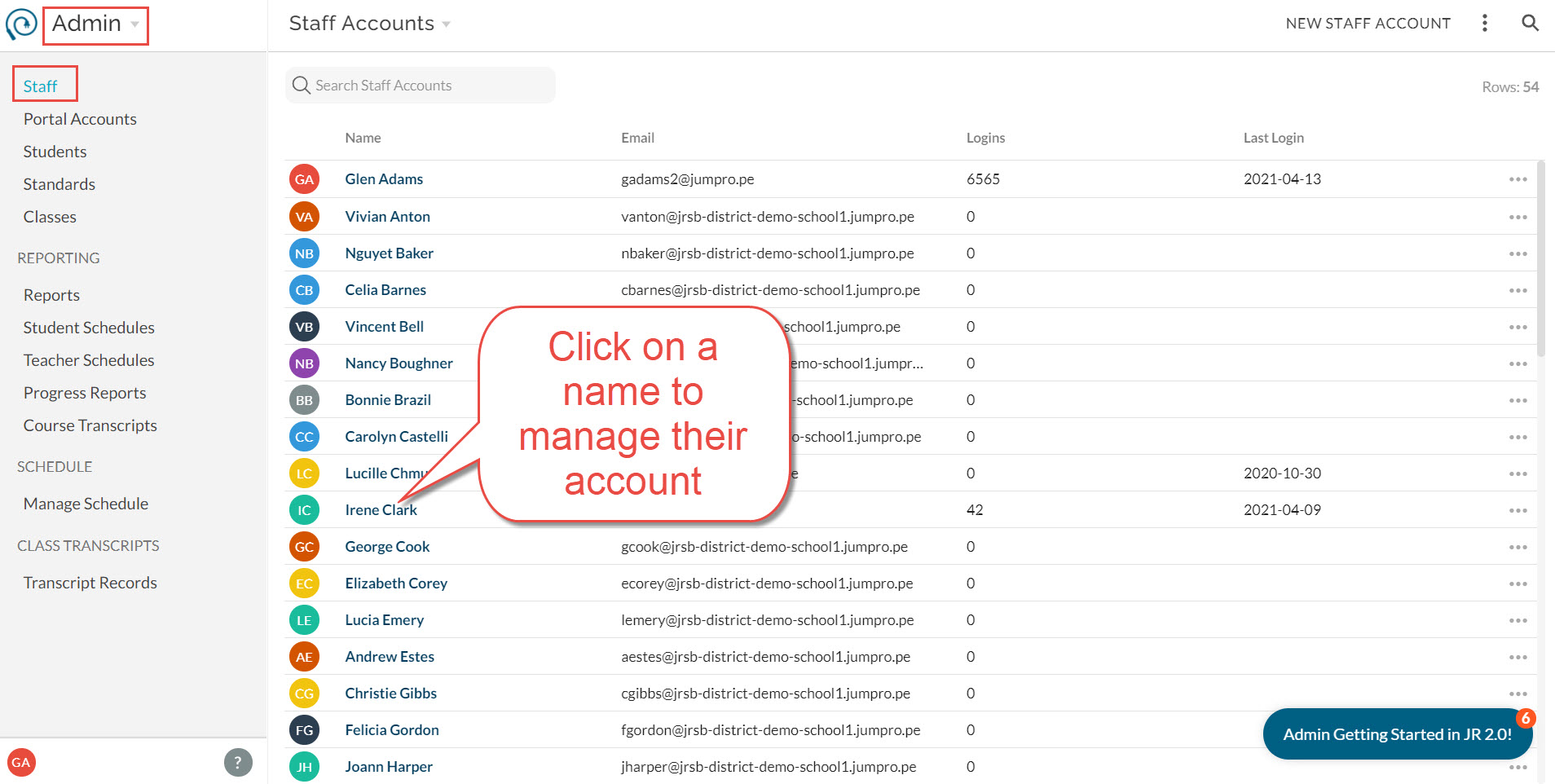
The Staff Account details page lets you view and manage account properties and roles. Roles provide access to individual schools within your district - district administrators can be given access to the entire district, or school-based staff can be given access to one or more individual schools.
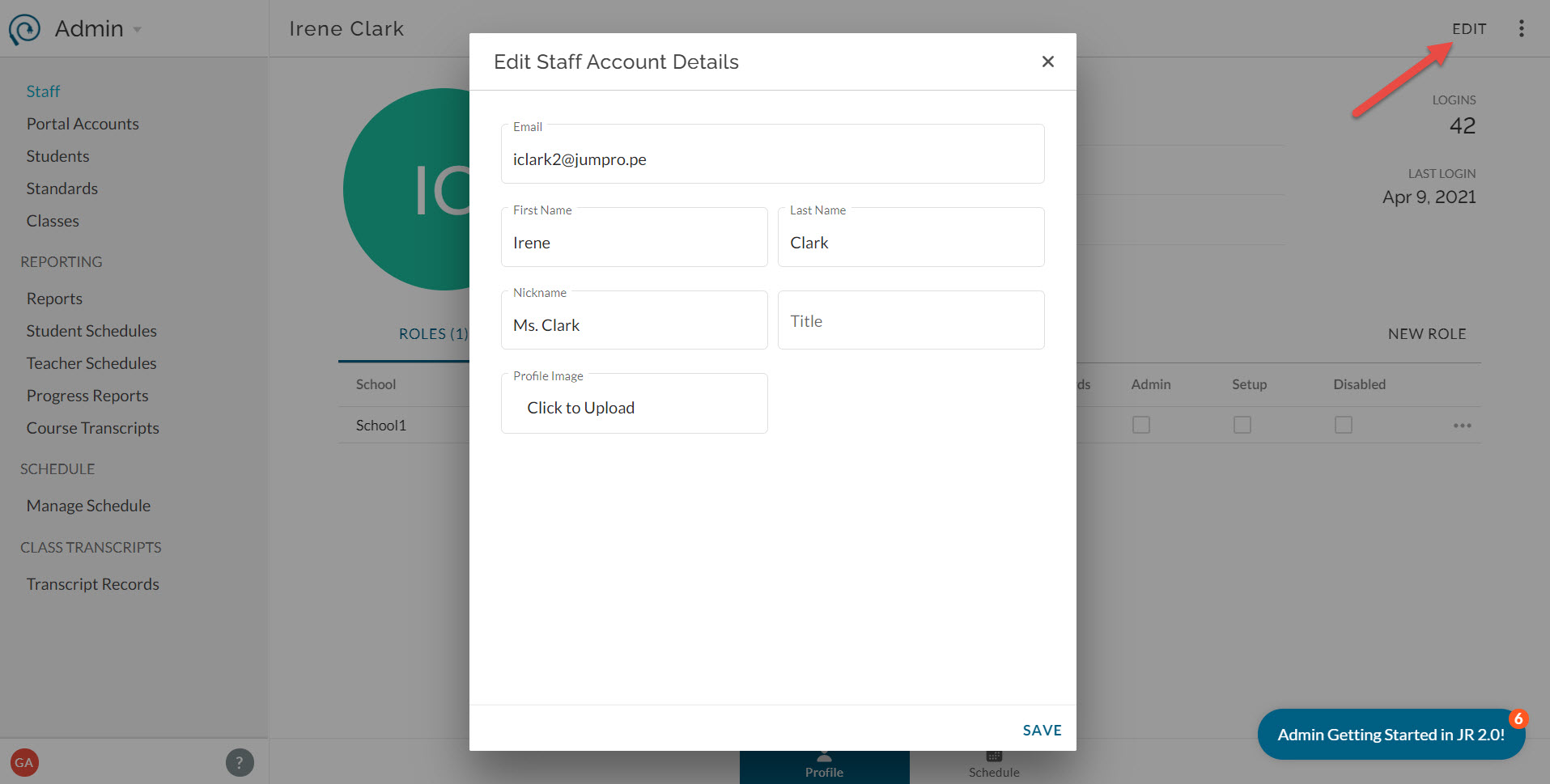
- To edit account properties like name and email , click on the Edit button in the top right.
- Email: the preferred contact email and the email used to log in to JumpRope.
- Nickname: this is the name used in student-facing reports.
- Title: the official job title of the user.
- Profile Image: photo or avatar to represent the user.
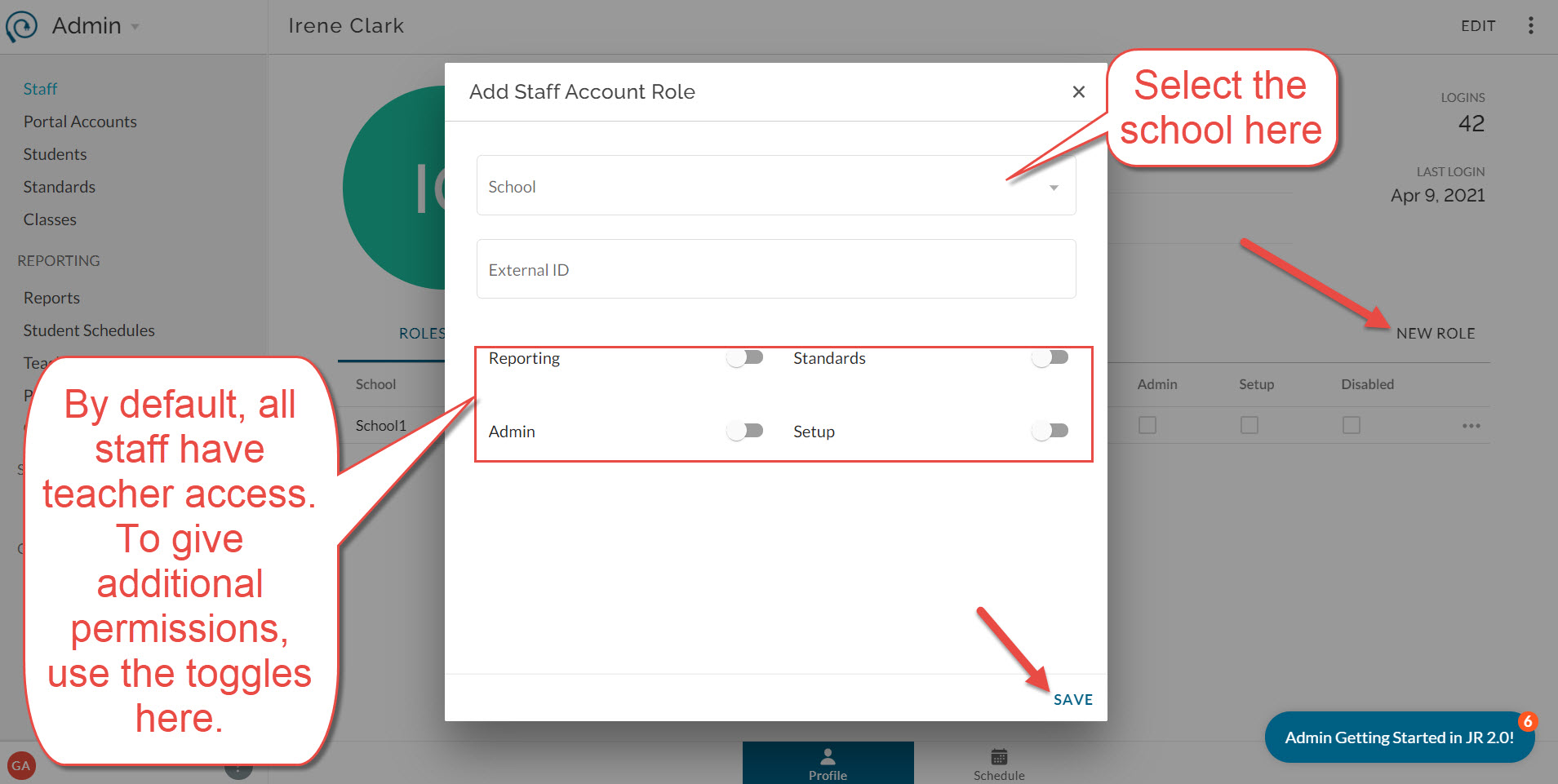
- To add a new role to a staff account , click new role to the top right of the role list.
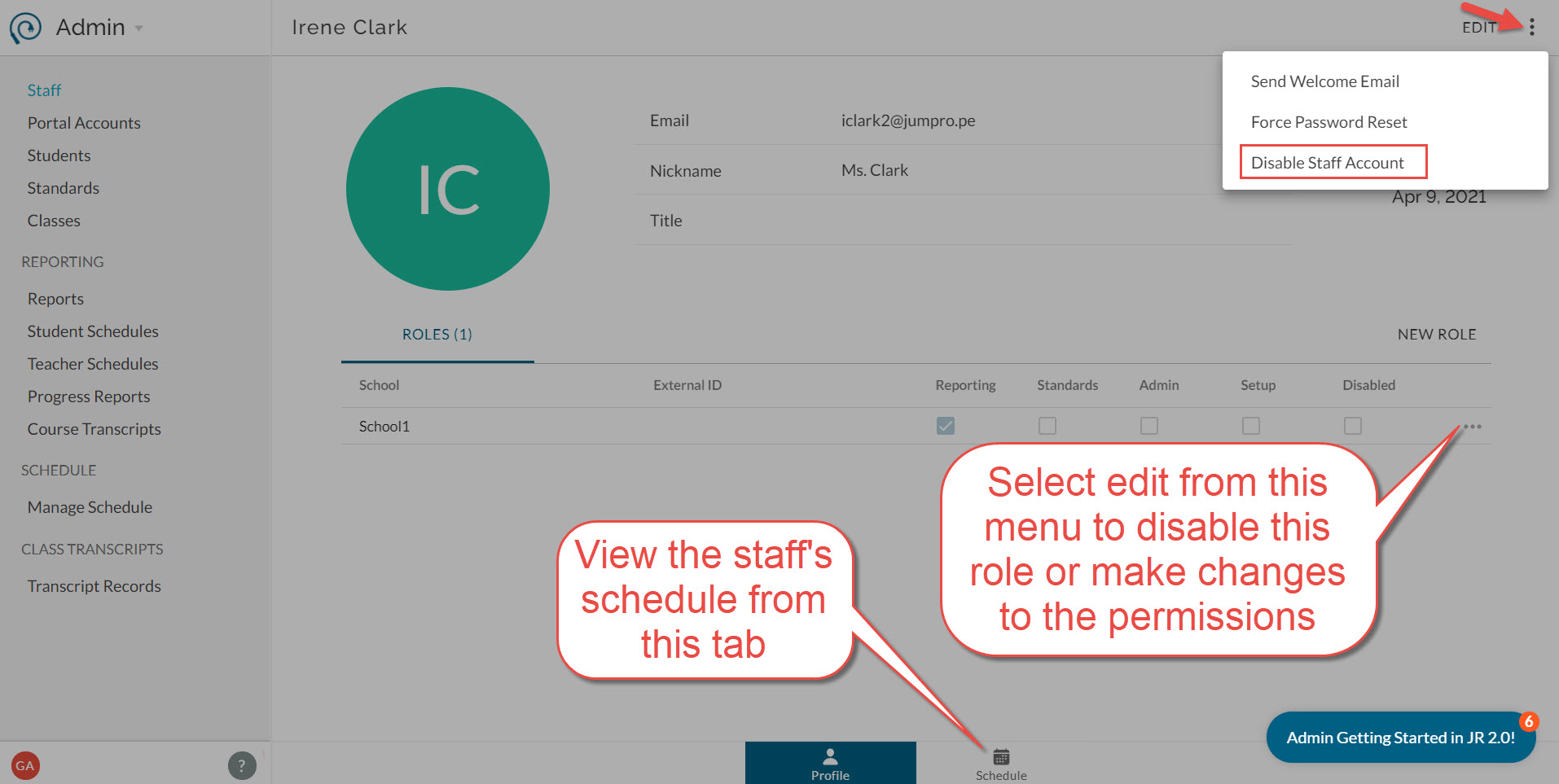
- To edit a role's access or external id , click on the more menu next to the role.
- External ID: optional code to match this user role with sections from the SIS.
- Reporting: allow the user to view school-wide Reports and have read-only access to all students in the school
- Admin: allow the user to manage school, staff, and portal accounts and access the full Admin tool.
- Standards: allow the user to create and edit standards for standards banks shared with the selected school (District Edition only).
- Setup: allow the user to modify configuration options in the Setup module.
- To disable or remove a specific role , click on the more menu next to the individual role.
- To disable the entire staff account , use the more menu in the top right of the page.
- To view a class list or schedule for the user , select the Schedule sub-tab on the bottom.
Good to know:
- You cannot delete a staff account or role completely, but you can disable it which prevents access.
- Disabling a role prevents access to a specific school. Disabling the staff account prevents the user from logging in.
- If you give a staff account a role with access to the District account, they automatically get a role for each school in the district if they didn't already have it.
- External ID is used to map the role to class sections when imported from your SIS.
Was this article helpful?
That’s Great!
Thank you for your feedback
Sorry! We couldn't be helpful
Thank you for your feedback
Feedback sent
We appreciate your effort and will try to fix the article