These features must be enabled by your account administrator.
Class Comments allows you to add a narrative comment for each student in your class, up to a paragraph or more. If marked as visible, the comments will display on the Family Portal and on printed progress reports when enabled. A student has to have at least one score entered for a class to be able to enter a narrative comment for the class. A single comment per class and per student is supported.
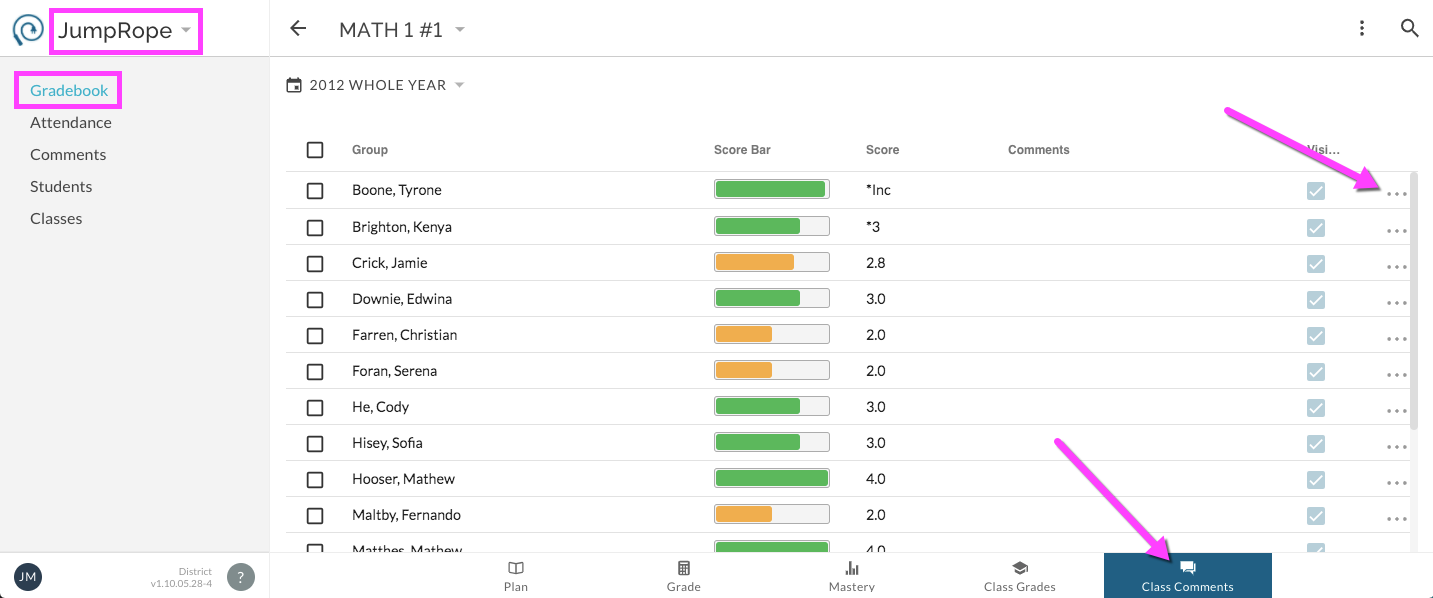
- To access Class Comments, navigate to JumpRope > Gradebook > Grade > Class Comments. If you don't see the option, it may not have been enabled by your account administrators.
- To add or edit a comment for a student , click on the item menu next to the student and select Edit.
- To Archive a comment , click on the item menu next to a student and select Archive. Archived comments are only visible to staff and are for reference only - they will not be visible to students or displayed on printed reports.
To bulk update or archive comments , select one or more comments using the checkboxes on the left and look for the bulk action menu that displays on the top right of the screen.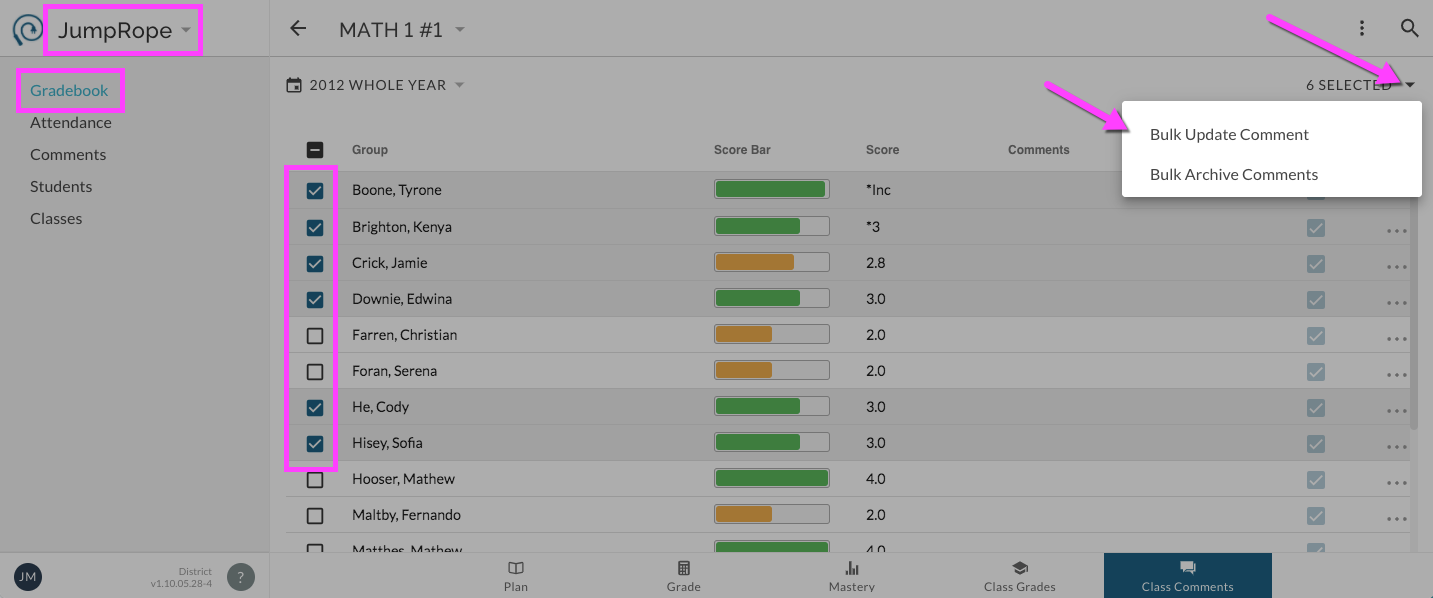
If you need to override class grades, look for the Class Grades tab. If you don't see it, it may not be enabled by your account administrator.
Was this article helpful?
That’s Great!
Thank you for your feedback
Sorry! We couldn't be helpful
Thank you for your feedback
Feedback sent
We appreciate your effort and will try to fix the article