Given that your school has enabled the option, teachers can manage their Assessment Types and weights from within Plan.
In Plan, select to Create a New Assessment. In the Type field for the new assessment, select the more menu item and then Manage Assessment Types.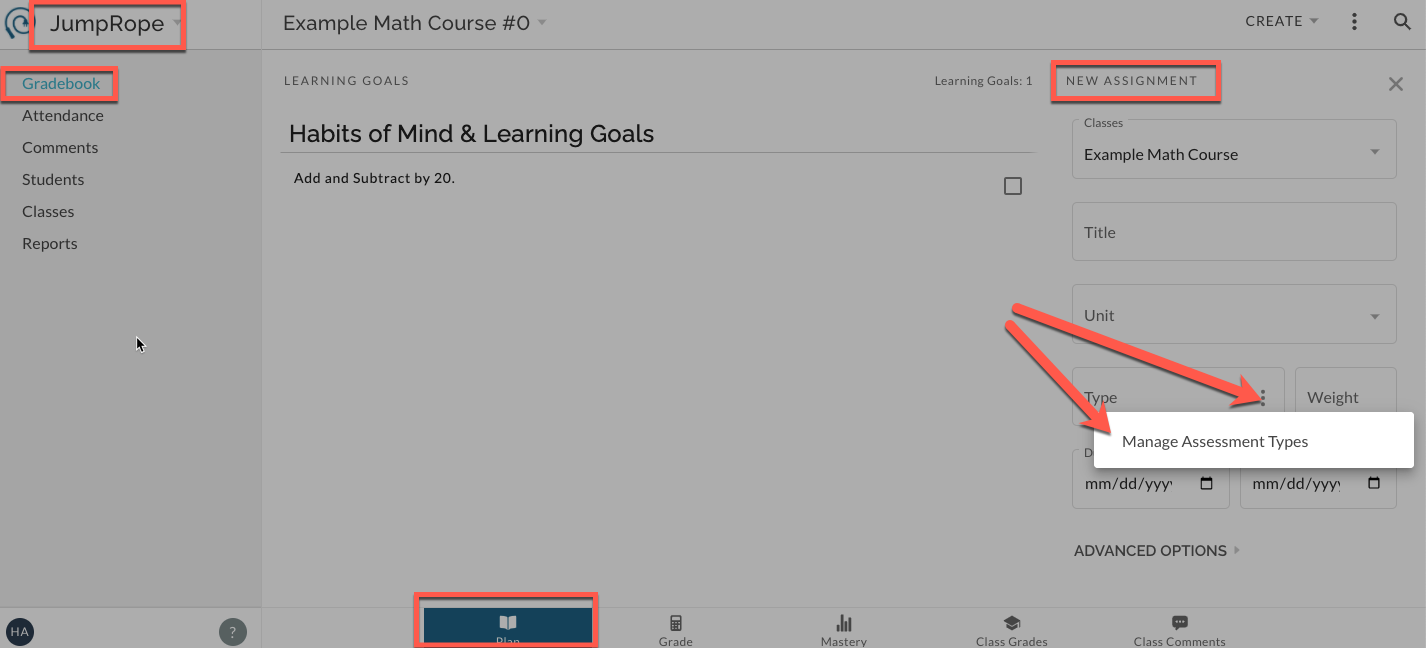
Create a new type
From the modal that pops up, you can choose to create a new assessment type (given that this is enabled by your school). This custom type will be available in your Plan and not accessible by others in the school.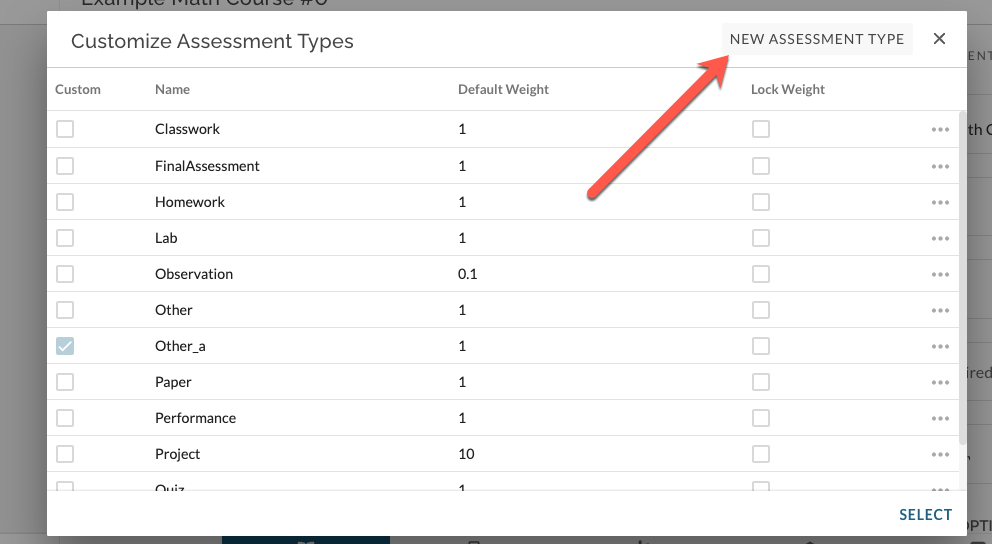
Edit existing
You can also choose to customize and existing type by editing its weight (given that this feature is enabled). Click on the more menu item for a type.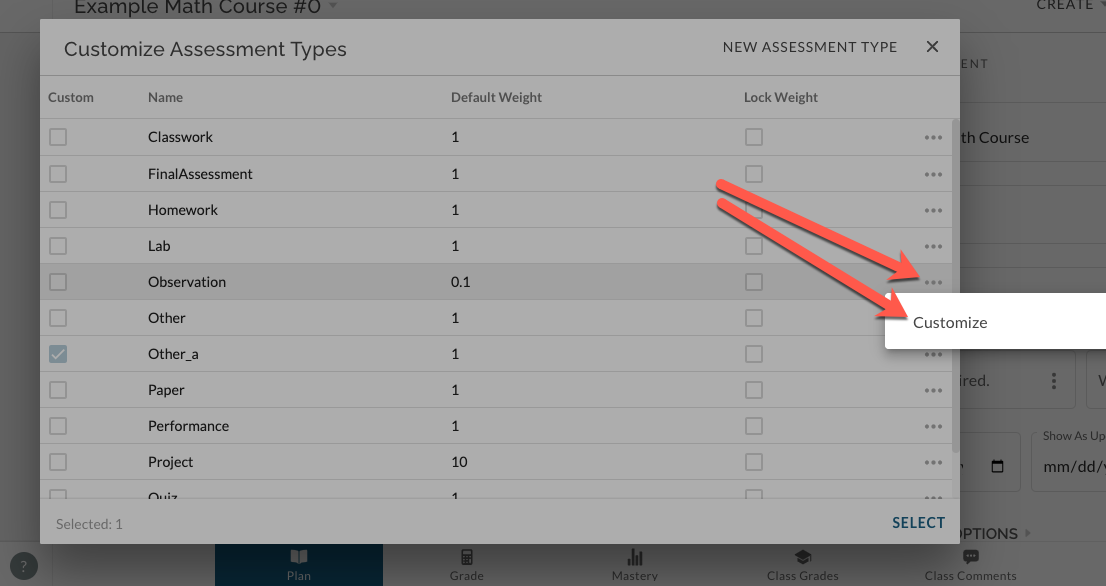
If you select to edit the weight of an existing type, you'll notice that the original, school-managed type will remain a choice on your list with its original weight and an additional new type unique to you will be added to the list.
Archiving and deleting
Additionally, any custom types can be archived or deleted. Use delete to remove the type entirely from use and historical reports. Use archive to remove a type from access; it will no longer be available when creating new assessments. Existing assessments of this type will not be deleted or otherwise affected. 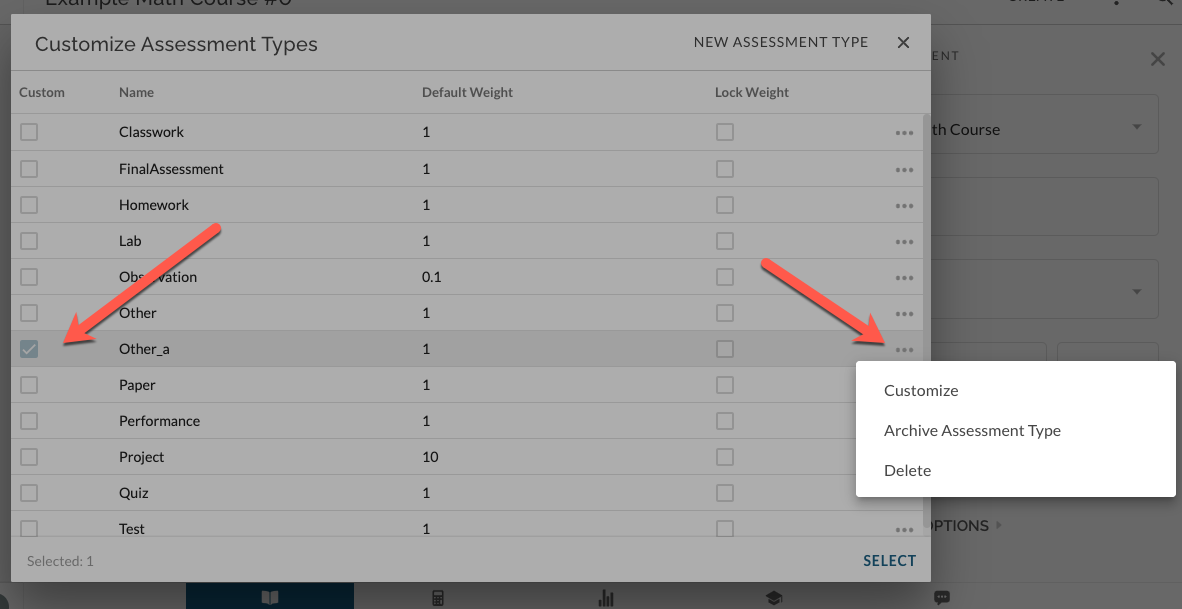
Choosing a 'successor'
When teachers re-use assessments of this archived type, they can choose a new assessment type to stand in for the archived version; a "successor".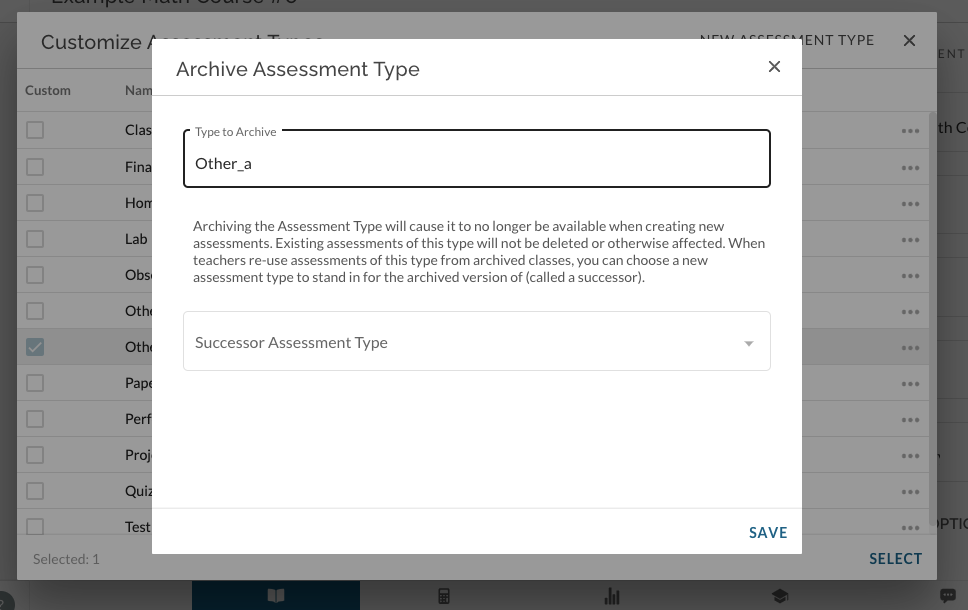
For more information, see here.
Was this article helpful?
That’s Great!
Thank you for your feedback
Sorry! We couldn't be helpful
Thank you for your feedback
Feedback sent
We appreciate your effort and will try to fix the article