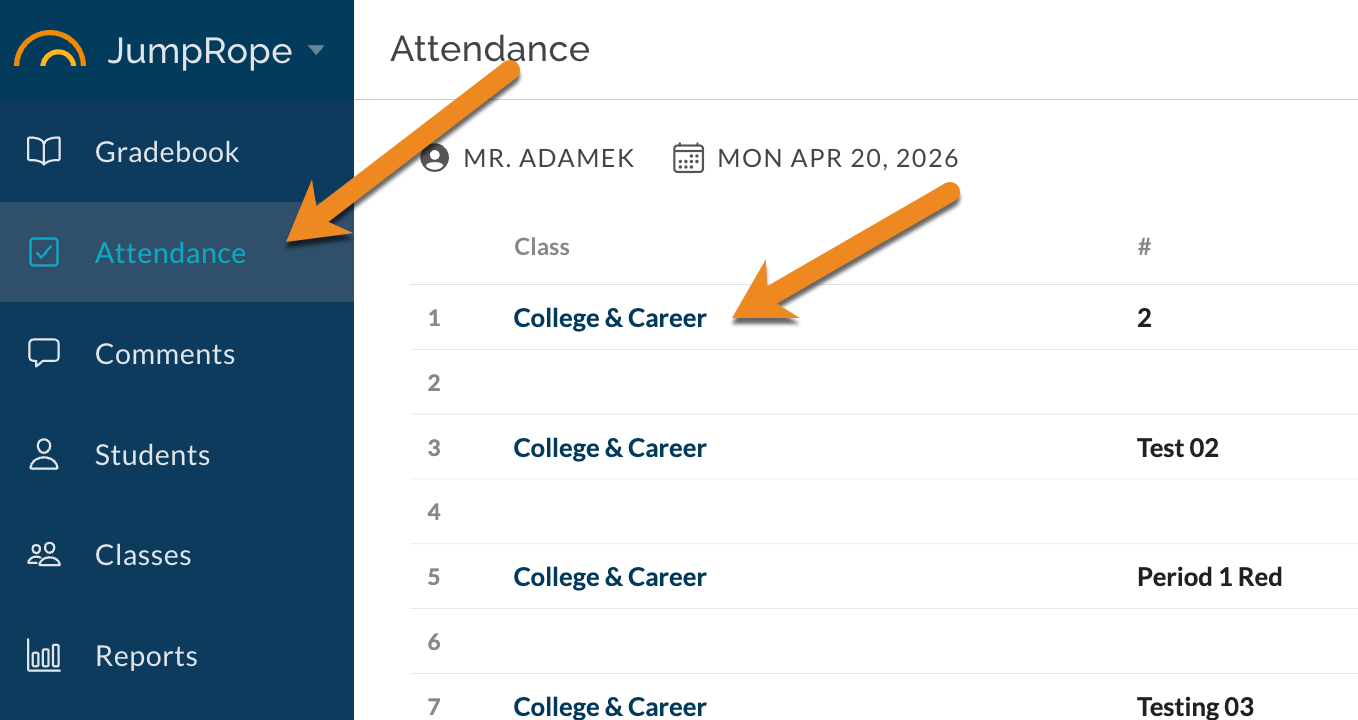
From the Attendance section, click on a class name to take attendance.
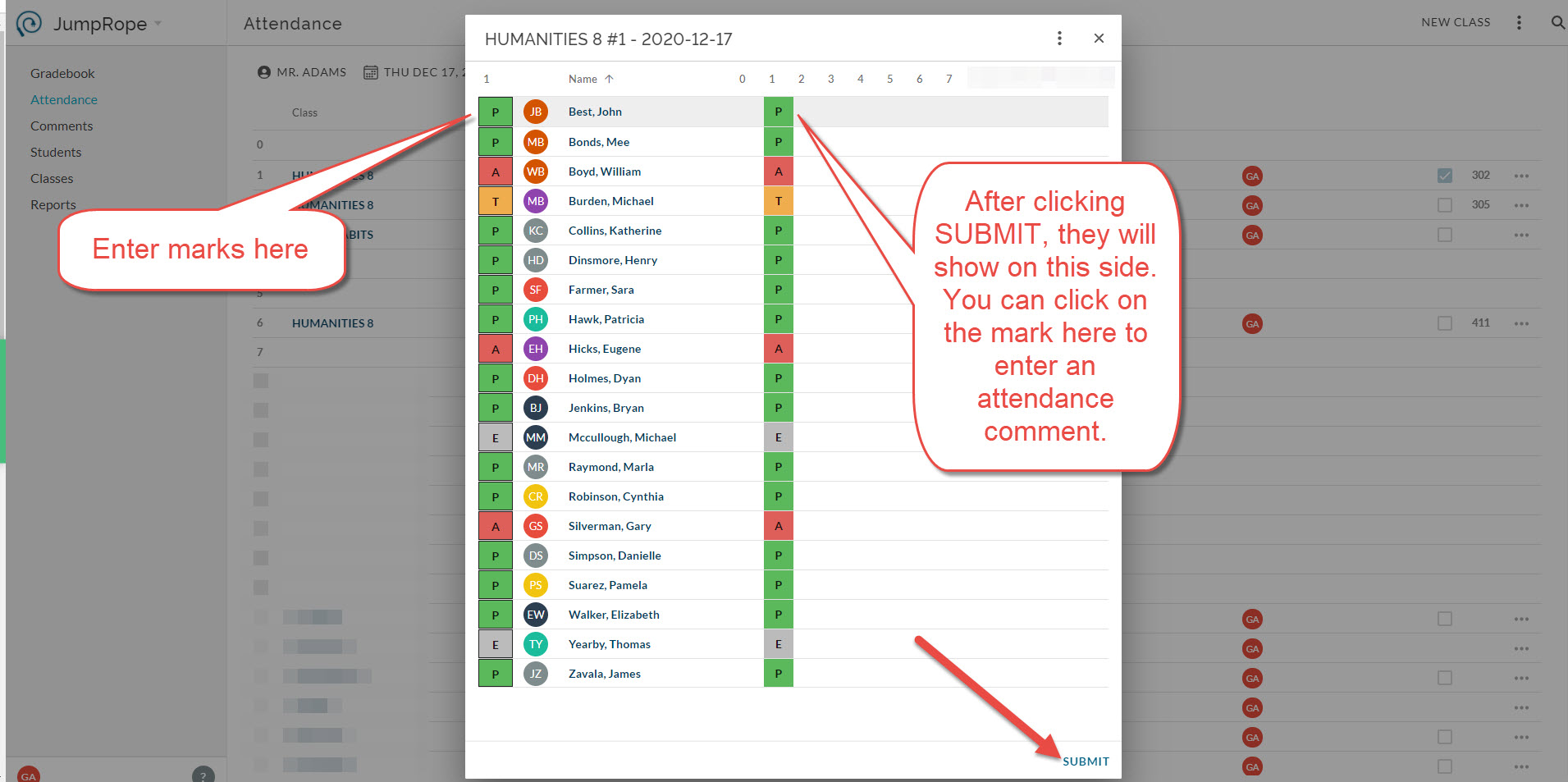
Enter attendance in the column on the left by either clicking the left-most box to cycle values or typing P, T, A, or E. Note some schools opt to have the marks default to P, so you would only need to change the the needed ones. To delete a record, select the desired row and press Backspace or Delete key. When finished, you must press Submit in the bottom right.
P = Present, averages as 100%
T = Tardy, averages as 75%
A = Absent, averages as 0%
E = Excused, does not affect average
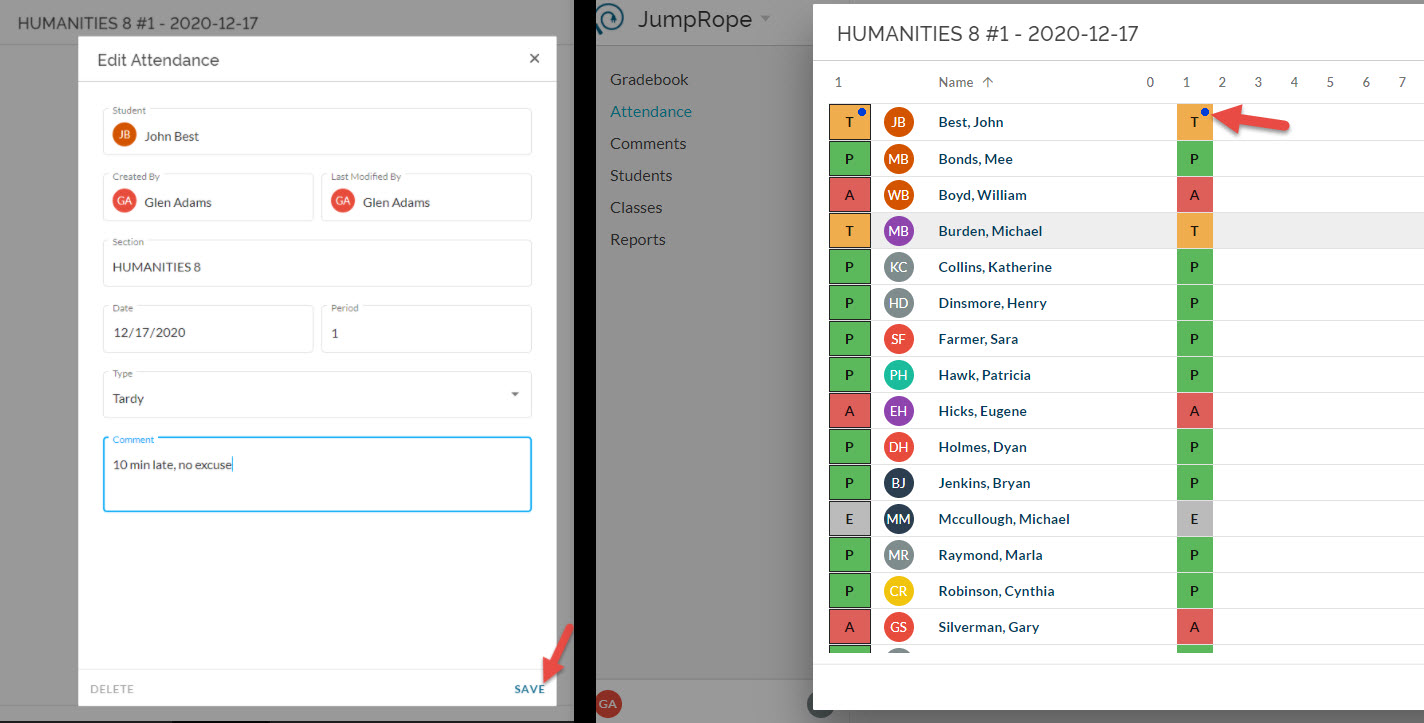
To enter a comment or edit a mark after submitting, first submit attendance with a P, T, A, or E value and then click the appropriate box on the right side. Records with a comment show a blue dot.
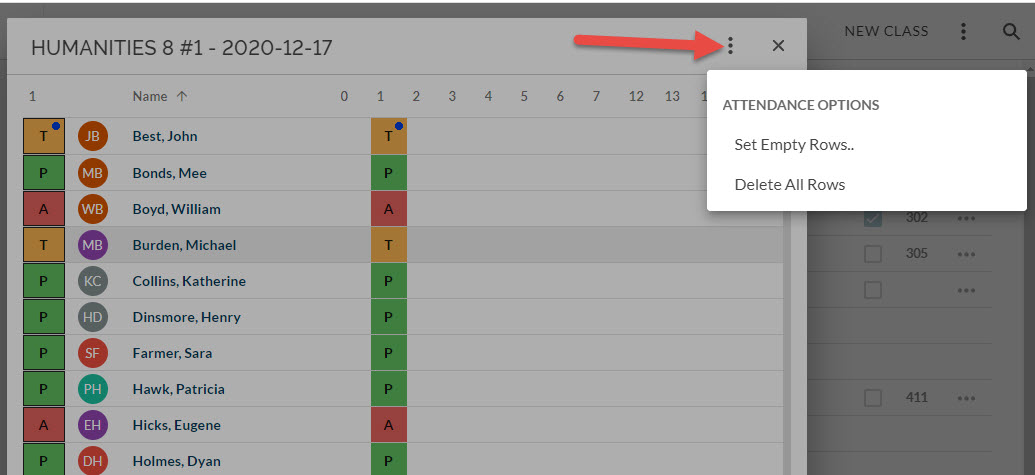
To set empty rows to an attendance mark or to delete all rows use the menu in the top right.
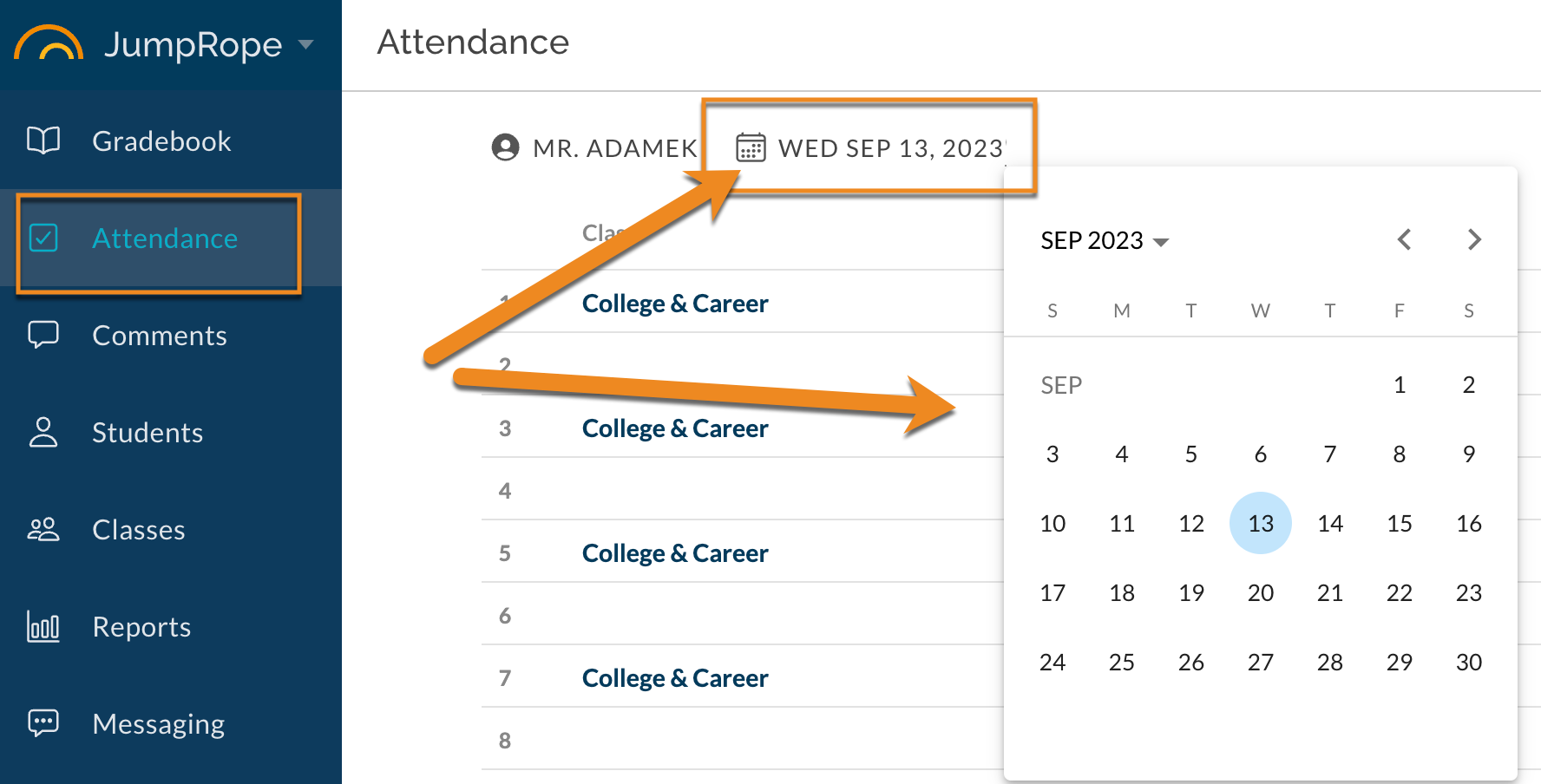
To enter attendance for a different date, navigate to Attendance in the main menu and change the date to select the section on the appropriate period. Note, you can only take attendance for the current 'default' TERM. Editing past TERM attendance is not supported in this view.
Was this article helpful?
That’s Great!
Thank you for your feedback
Sorry! We couldn't be helpful
Thank you for your feedback
Feedback sent
We appreciate your effort and will try to fix the article