When creating a new anecdotal comment, it is possible to attach more than one student to a comment. Doing so will create a "bulk comment" which creates a copy of the comment for each student. When submitting the comment, you will be asked to choose to whom the comment should be assigned and sent to as a CC. Depending on school Comment Type settings, Assignee and CC's may be auto set based on the Comment Type you select.
Navigate to the Comments menu item and select New Comment.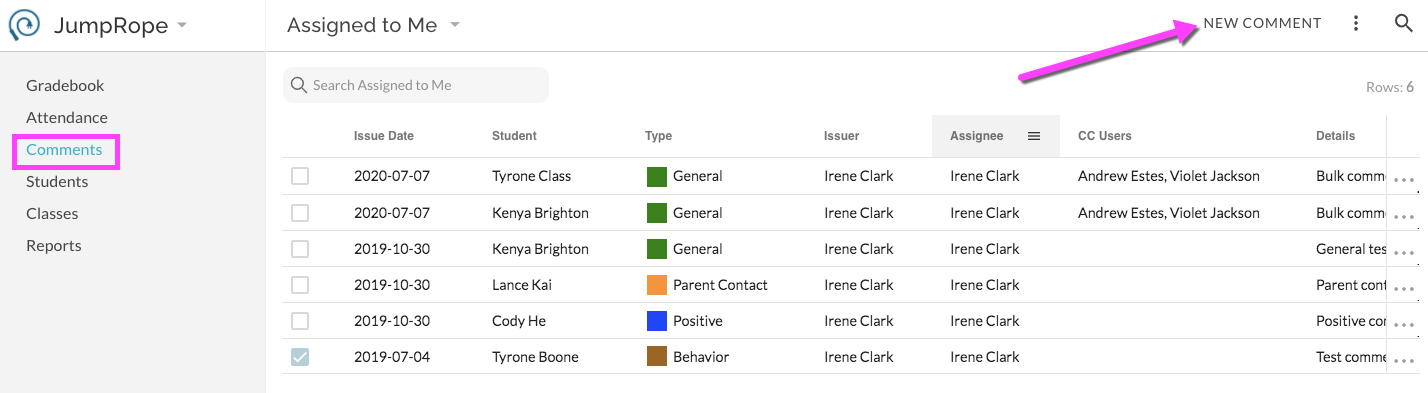
In the Student field, begin to type a student name. Select desired student name(s) from the autofill list that displays.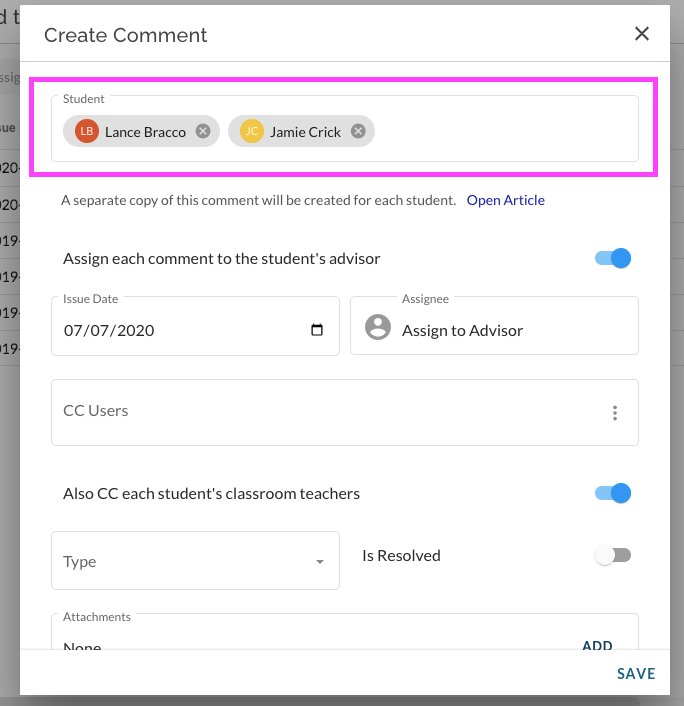
Assignee
An Anecdotal Comment will be created for each student listed. Choose to have each individual comment assigned to the aligned advisor by selecting "Assign each comment to the student's advisor". Depending on school Comment Type settings,__Assignee and CC's may be auto set based on the Comment Type you select.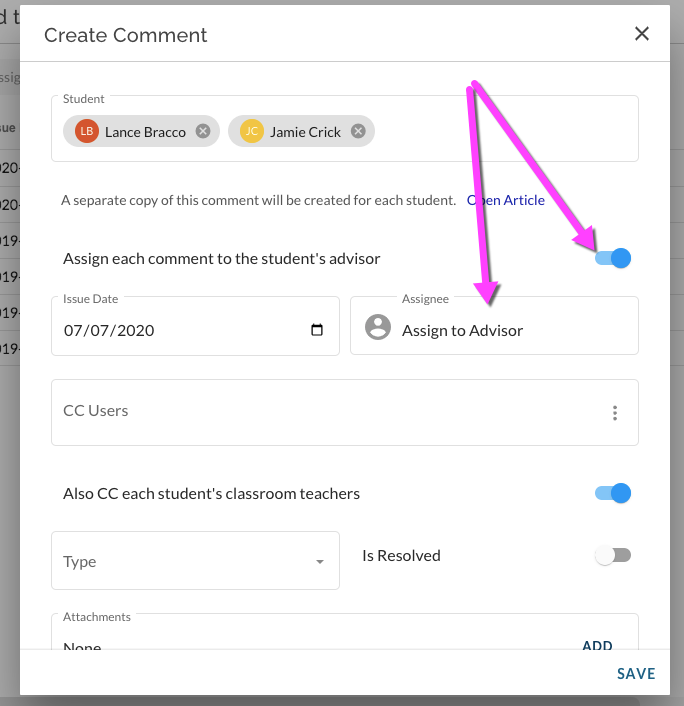
Alternatively, assign each of the individual comments to a single selected staff member. 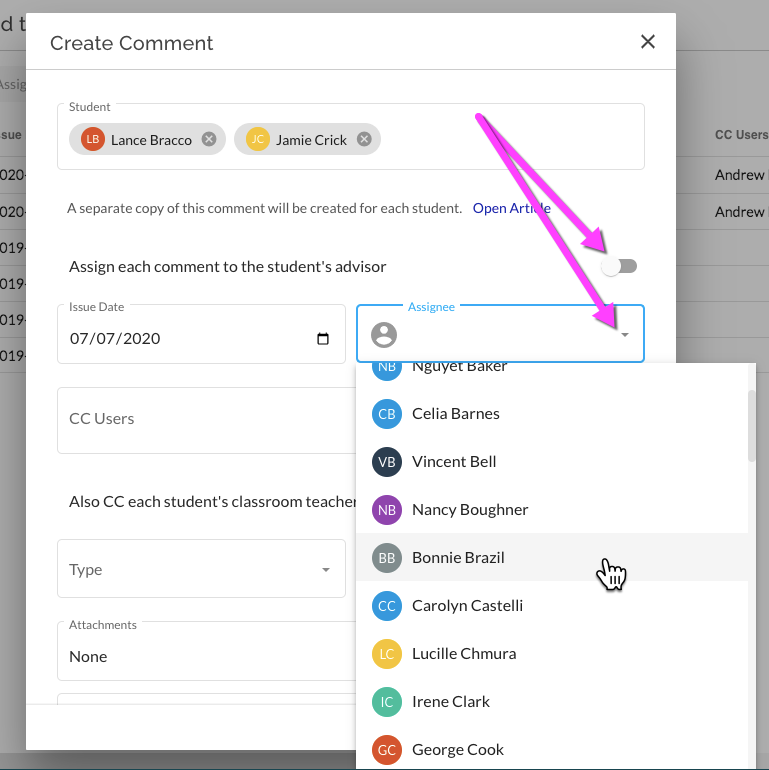
CC Teachers, Admin, Staff
Manually include any other user as a CC on the Comment. Depending on school Comment Type settings,__Assignee and CC's may be auto set based on the Comment Type you select.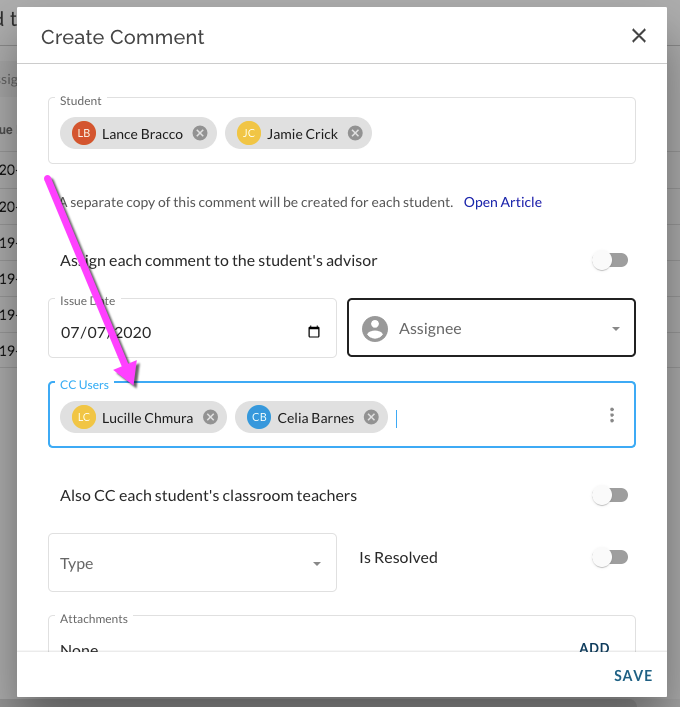
CC Classroom Teachers
Choose to have each individual student's Comment CC'd to their classroom teachers. 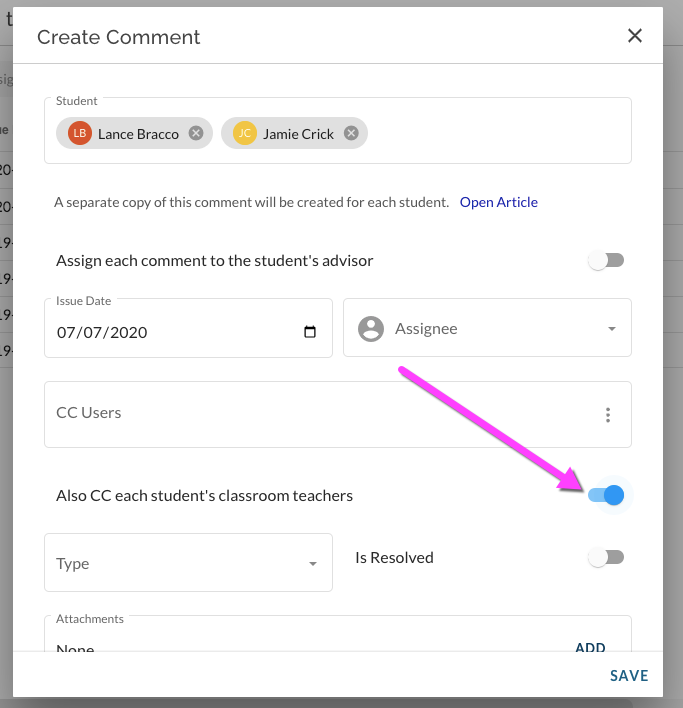
See also:
-
How To - Create an Anecdotal Comment
-
Comment Views
Was this article helpful?
That’s Great!
Thank you for your feedback
Sorry! We couldn't be helpful
Thank you for your feedback
Feedback sent
We appreciate your effort and will try to fix the article