If enabled by your school, select Create and then New Standard (*your school may call a standard something different, such as a learning target or outcome).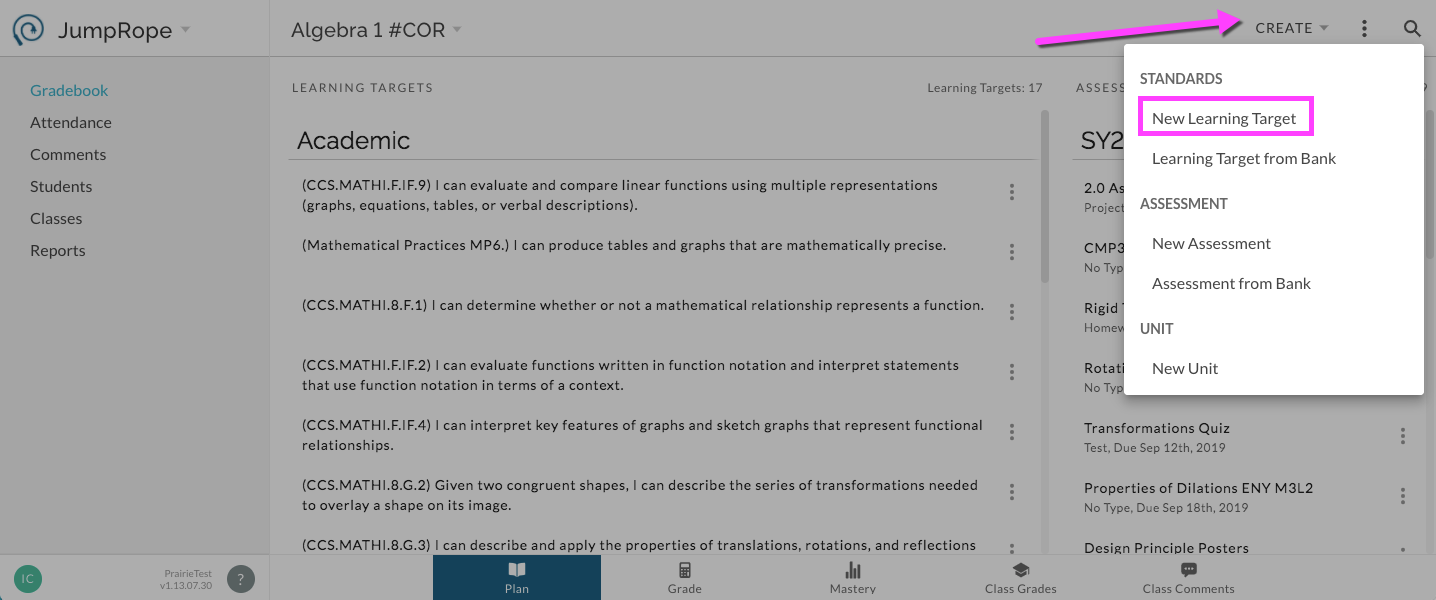
In the window that opens, enter details about the new standard.
For Classes, the current class is automatically selected. You can choose to copy this standard to other classes via the dropdown menu. (This is one of a number of ways to copy a standard to other classes in JR 2.0. See here for more.)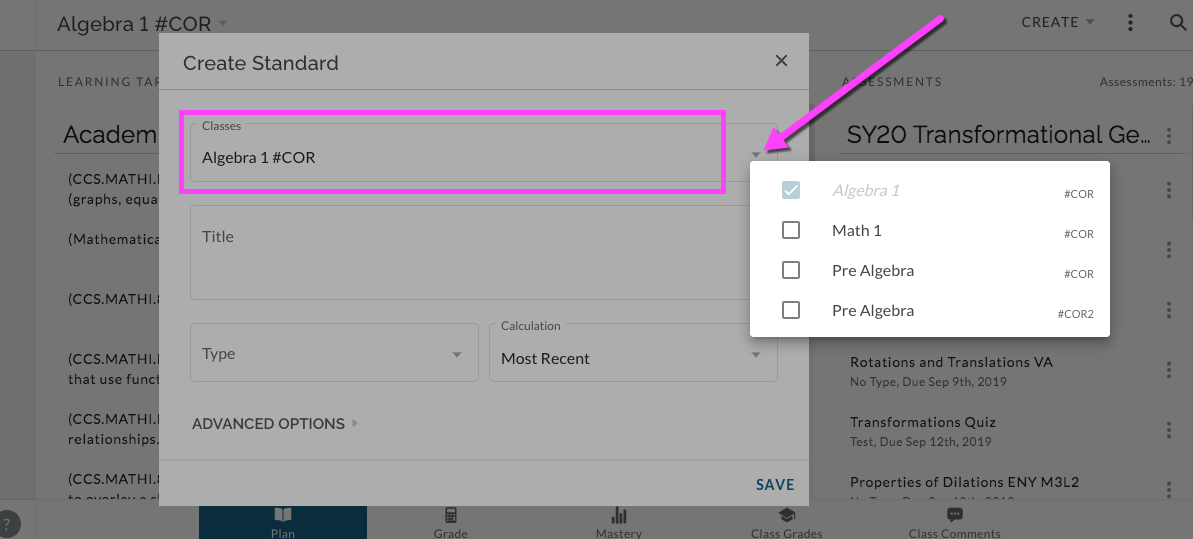
In the Title field, enter the text of the standard. Select a type and select a calculation method from those enabled by your administration. Click to Save.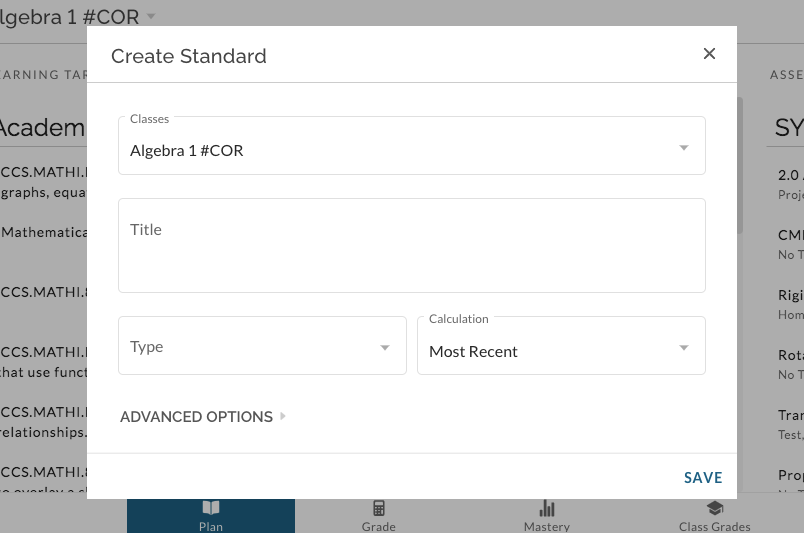
Note: Standards can also be copied to additional classes after they have already been used by a class. Here's more.
Was this article helpful?
That’s Great!
Thank you for your feedback
Sorry! We couldn't be helpful
Thank you for your feedback
Feedback sent
We appreciate your effort and will try to fix the article