A user with District level Admin permissions can create, edit and manage Course Plans. (See also, How to - Add, edit, and manage content in a Course Plan and Course Plans - Overview)
Create a new Course Plan item
- Navigate to Admin -> Course Plans -> New Course Plan
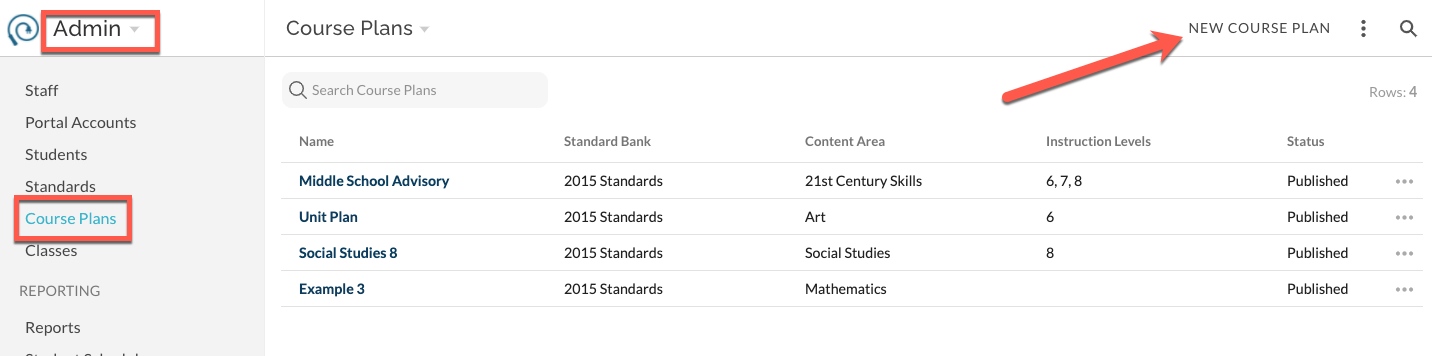
- In the modal that opens, complete the form.
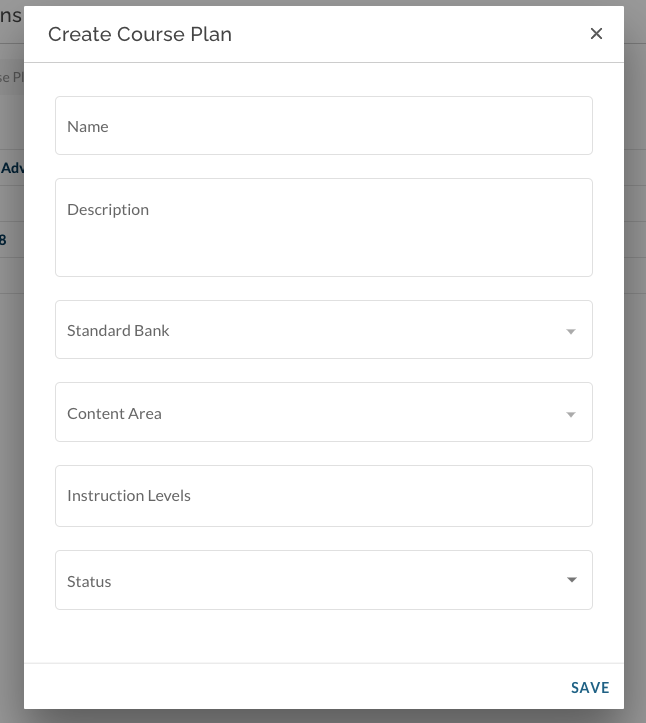
- Name (required) - This is the title that teachers will see when selecting the Course Plan from the Bank
- Description (optional) - Not currently teacher-facing. Visible in Admin list view of Course Plans.
- Standard Bank (required) - Select from existing 'In Design' and 'Published' banks. Course Plan will only be available to users for whom the selected bank is also 'Published'.
- Content Area (required) - Teacher-facing element that can be used to find and sort when searching the bank for desired Plans.
- Instruction Levels (optional) - Teacher-facing element that can be used to find and sort when searching the bank for desired Plans.
- Status (required) - Published Course Plans are accessible to teachers.
- Save and the Course Plan will be added to the list view. Click on desired Course Plan name to add, edit, and manage its content.
Was this article helpful?
That’s Great!
Thank you for your feedback
Sorry! We couldn't be helpful
Thank you for your feedback
Feedback sent
We appreciate your effort and will try to fix the article