How to Create New Parent Standards imported in bulk
From the Admin Console page, select Standards.
Select a Standard Bank by clicking on the name of the desired bank.
From either Hierarchy View or Parent Standards List View, select More Options menu︙in top right. Select Import Parent Standards.

In the details window that opens, select Download Template and open the file and/or select Bank and click Next. At this point you can choose to upload from the template or simply type data directly into the import tool.
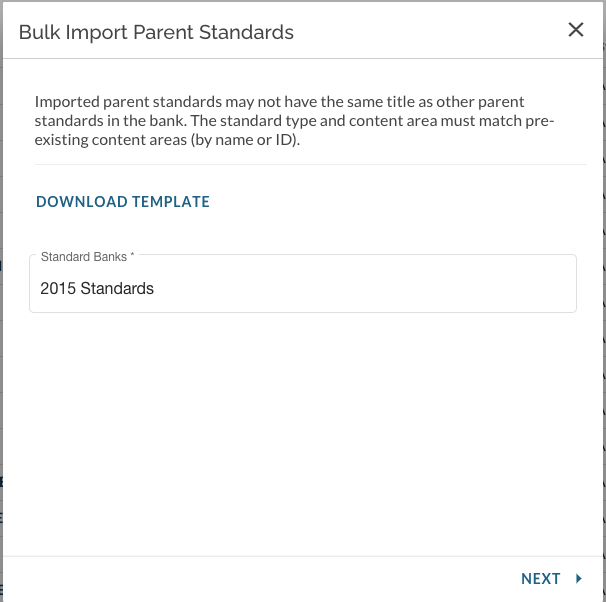
If using the Template -
Open downloaded template file and complete with Parent Standard information:
- title - title of Parent Standard, limited in length to 120 characters
- formal_content_area - values in this column must be from the pre-populated list on template, can re-use items
- formal_type - values in this column must be from pre-populated list on template, can re-use items
- description - optional text to provide more detail regarding standard
- include_in_transcripts - optional values may be either "Yes" or "No"
Click here for more information on Content Area.
Delete from template example rows that are not needed.
Save file
Back in import window, in Bulk Import Parent Standards window, select to Upload Data from File. Select template file.
Import will attempt to map fields from file. Scroll down to see more. Select to Review.
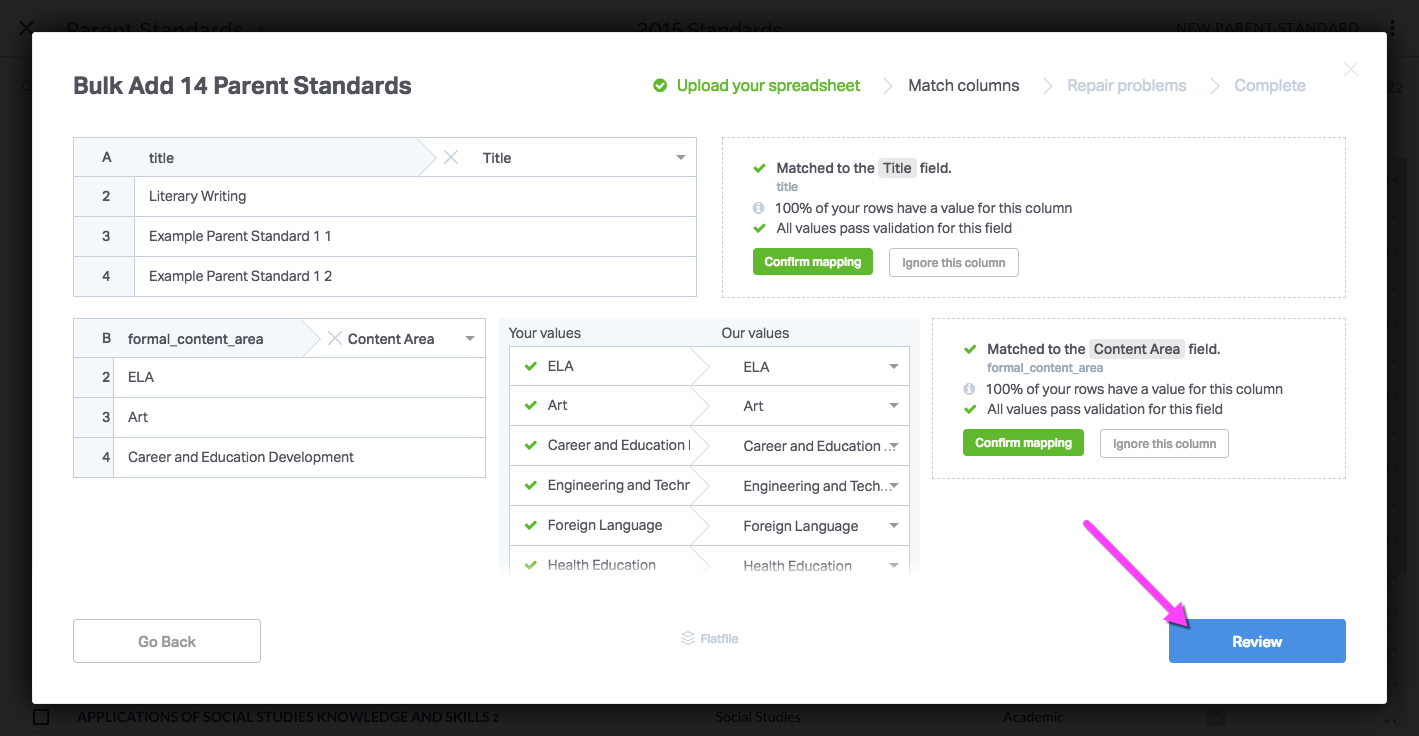
In Review you will have the opportunity to repair problems. Make any corrections directly on screen.
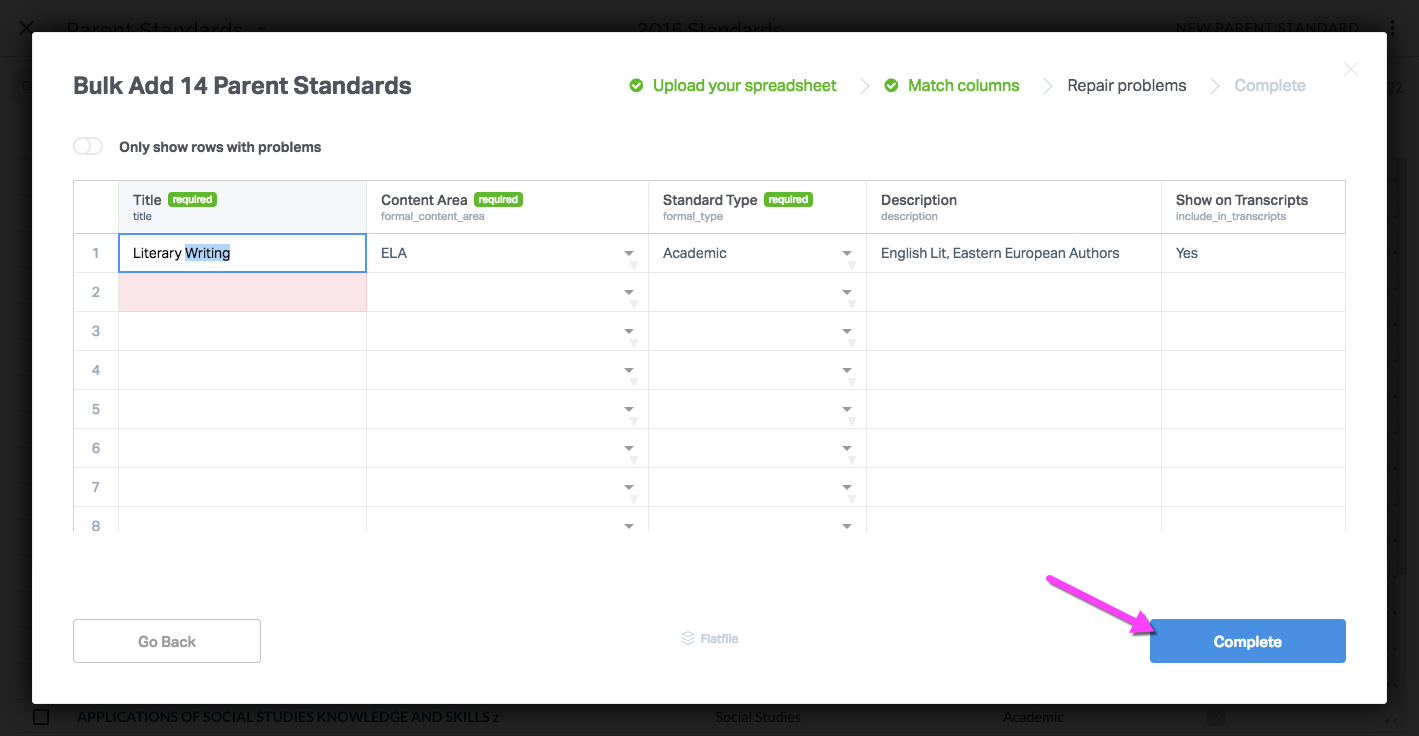
Select Complete and Parent Standards will be created and imported.
Was this article helpful?
That’s Great!
Thank you for your feedback
Sorry! We couldn't be helpful
Thank you for your feedback
Feedback sent
We appreciate your effort and will try to fix the article